
How to Use Stop Reports to Understand a Driver’s Workday

For fleet managers, understanding what happens between the beginning and end of a driver’s shift can be just as important as knowing how many kilometres the vehicle travelled. Where did the driver stop? How long did each visit take? Were expected customer locations reached? Were there unexplained gaps during the day?
GPS tracking data can help answer these questions without relying entirely on handwritten records, phone calls, or a driver’s memory. With Wialon, a Stops report organizes recorded stopping activity into a timeline that fleet managers can use to better understand how a vehicle was used throughout the workday.
When combined with detailed trip history, geofences, and work-hours information, stop data can provide valuable context for reviewing customer visits, job-site activity, travel time, and overall fleet productivity.
What Is a Wialon Stops Report?
A Wialon Stops report provides information about stationary or very low-speed intervals detected during a vehicle’s movement. According to Wialon’s Stops documentation, a stop is detected when the vehicle’s speed falls below the configured minimum moving speed for less than the system’s minimum parking time.
This distinction is important. A brief pause at a traffic light, intersection, congested road, customer entrance, or delivery location could potentially be recorded as a stop. If the stationary period reaches the configured minimum parking time, Wialon classifies it differently.
Because of this, a Stops report should not automatically be interpreted as a list of completed jobs. Instead, it provides objective vehicle activity that managers can place in the context of the driver’s schedule and expected work.
What Information Can a Stops Report Show?
The information available in a Stops report makes it possible to reconstruct much of a vehicle’s daily activity.
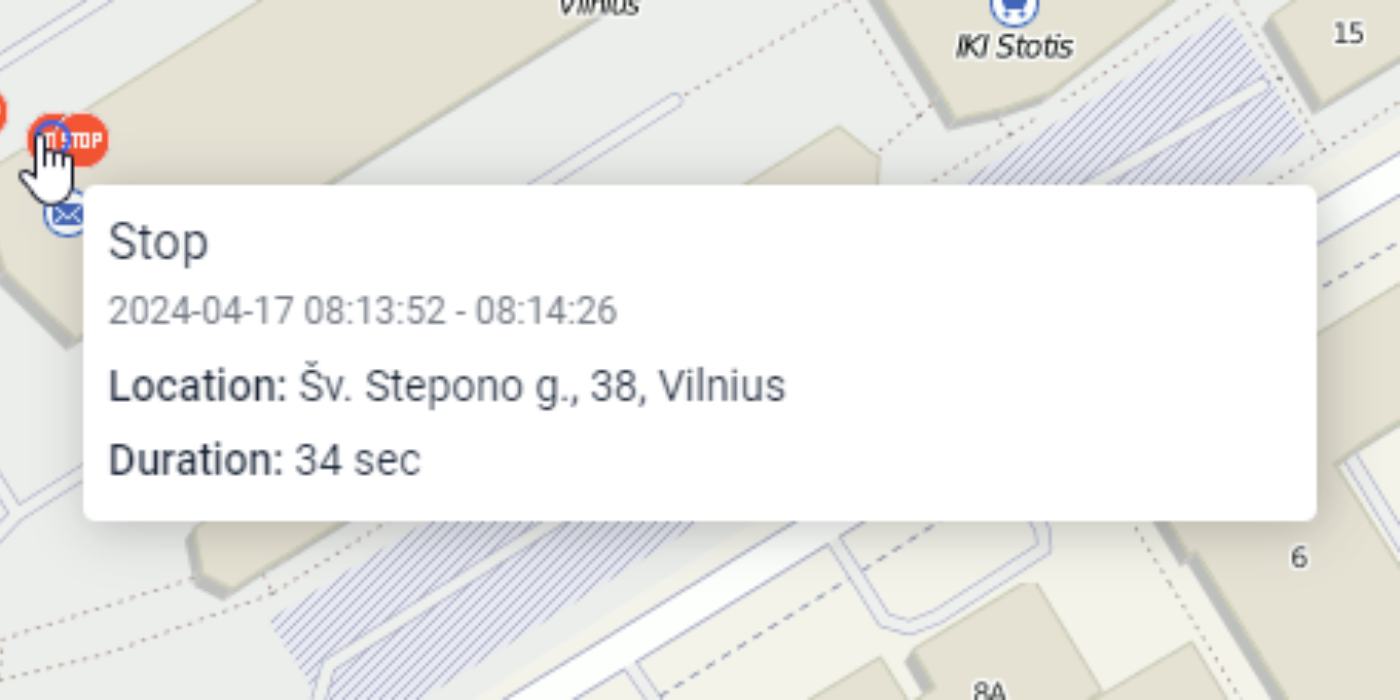
Wialon can include the beginning and end of a stop, its duration, the location or address, coordinates, the time between stops, the number of stops, and the driver name when that information is available. The Stops report can also be displayed with corresponding markers on a map, giving managers both a chronological and geographic view of the activity.
For day-to-day fleet management, some of the most useful information includes:
- Stop start time
- Stop end time
- Stop duration
- Stop location or address
- Time between consecutive stops
- Identified driver, when available
Together, these fields help transform GPS records into an understandable timeline of the workday.
Start by Reconstructing the Driver’s Daily Timeline
One of the simplest ways to use a Stops report is to run it for a single vehicle over a specific workday.
Look at the stops chronologically, beginning with the vehicle’s first activity of the day. Each recorded stop becomes another point in the timeline. Managers can see when the vehicle reached different locations, how long it remained there, and how much time elapsed before the next recorded stop.
For example, a field-service vehicle might leave the company yard in the morning, travel to several customer locations, stop for lunch, complete more appointments, and return to the yard. Reviewing those locations and times in sequence can give a manager a much clearer picture of how the day unfolded.
This approach is especially useful when managers need to investigate a specific day instead of relying only on weekly or monthly totals.
Compare Stops With Detailed Trip History
Stops become more useful when viewed alongside the movements that connect them.
Wialon’s Trips report can show trip beginning and end times, starting and final locations, duration, mileage, speed information, and other available data. By comparing stops with detailed trip history, a fleet manager can distinguish time spent travelling from time spent at different locations.
Imagine a technician was scheduled for four customer appointments. A manager could review the day as a sequence of travel and stopping activity:
Company yard → travel → Customer A → travel → Customer B → travel → Customer C → travel → Customer D → return trip
Rather than simply knowing that the vehicle travelled a certain distance, the manager can see how the working day was distributed between driving and stationary activity.
This can help identify operational patterns such as unusually long travel periods, unexpectedly short customer visits, long gaps between jobs, or repeated stops along a route.
Use Stop Locations to Review Customer and Job-Site Visits
The location field is one of the most useful parts of a Stops report.
If a driver is expected to visit several customer addresses during a shift, managers can compare recorded stop locations with the planned work. A stop near an expected address can provide supporting information that the vehicle reached that area at a particular time.
However, GPS data should be interpreted with context. A stop at or near a customer location confirms vehicle activity, but it does not necessarily prove that a specific task was completed.
For frequently visited locations, geofences can provide an additional layer of organization. Wialon defines geofences as specific areas on a map used to monitor units inside or outside those areas. A fleet might create geofences around customer properties, warehouses, yards, or regular job sites.
The Geofences report can then provide information about areas visited by a vehicle. Comparing stop information with visited-geofence data can make regular customer and job-site visits easier to interpret.
Identify Long or Unexpected Stops
Not every stop during a workday will represent productive work. That is why duration is particularly useful.
Managers can look for stops that appear unusually long compared with the type of work expected at that location. For example, if most service visits take approximately 30 minutes but one vehicle regularly remains at a particular location much longer, the pattern may be worth investigating.
The goal should not be to assume that every unusual stop represents a problem. There may be legitimate explanations such as traffic, loading delays, customer availability, weather, paperwork, breaks, or job complexity.
Instead, stop reports provide evidence that helps managers ask better questions. Repeated patterns across several days are often more meaningful than one unusual event.
Look at the Time Between Stops
The stop itself tells only part of the story. The time between consecutive stops can also provide useful information about how a driver’s day is structured.
Wialon can include an “Off-time” value representing the period between the end of one stop and the beginning of the next.
When this information is considered alongside trip history, managers can better understand whether a long portion of the day resulted from travel, stops, or another type of vehicle activity.
Over time, these patterns can help businesses recognize routes or schedules where employees consistently lose time between appointments.
Compare the Beginning and End of the Workday
Stop reports can also help provide context around when a vehicle becomes active in the morning and when daily activity finishes.
For fleets that need a broader view of employee working periods, Wialon reports are designed to combine and analyze available vehicle and driver data. Forall Tracking also provides timesheet and work-hours reporting based on recorded GPS activity.
Using work-hours information together with stops and trip history can help managers compare scheduled hours with recorded vehicle activity and investigate substantial differences.
Vehicle activity should still be treated as operational evidence rather than a perfect replacement for every type of employee time record. A technician, for example, may continue performing paperwork or other duties after the vehicle has stopped moving.
Review Activity Outside Normal Working Hours
Stop information can become particularly useful when a vehicle appears to be active outside its expected schedule.
If after-hours vehicle use has been detected, managers can use trip and stop information to investigate what occurred. They can determine when the vehicle moved, review its recorded route, and examine where it stopped.
This provides more context than simply knowing that a vehicle was active after hours. Managers can determine whether the activity appears consistent with an authorized late job, an early start, an emergency call, or something that requires further review.
Make Sure Stop Detection Is Configured Correctly
The accuracy of the analysis depends heavily on configuration.
Wialon detects trips and stops according to parameters established in the vehicle’s Trip Detector settings. Settings such as minimum moving speed and minimum parking time affect how vehicle activity is classified.
This means two fleets with different configurations could interpret the same stationary period differently.
Settings should therefore reflect how the vehicles actually operate. A service fleet making frequent short visits may have different requirements from vehicles that spend long periods at warehouses or job sites.
If reports seem to contain too many insignificant stops or fail to represent expected activity correctly, the configuration and the quality of the underlying GPS data should be reviewed before drawing conclusions about driver behaviour.
Look for Patterns Instead of Isolated Events
Stop reports become particularly valuable when managers use them consistently.
A single unusual stop may mean very little. Similar behaviour appearing repeatedly over several days or across multiple vehicles is much more informative.
Managers may begin to notice patterns such as:
- Certain customer locations consistently requiring more time
- Repeated delays at a particular facility
- Excessive gaps between scheduled visits
- Routes that regularly produce unnecessary stops
- Differences between expected and actual workday activity
- Recurring after-hours vehicle activity
These patterns can reveal issues with scheduling, customer processes, dispatching practices, route selection, or employee workflow that would be difficult to recognize from odometer readings or end-of-day summaries alone.
Turn GPS Data Into a Clearer Picture of the Workday
A Stops report is most useful when it is treated as part of the driver’s overall activity record rather than as an isolated list of stationary events. By reviewing where stops occurred, when they happened, how long they lasted, and how they fit between recorded trips and expected job-site visits, fleet managers can build a much clearer picture of how vehicles are being used throughout the day.
Forall Tracking can help businesses use Wialon stop reports, detailed trip history, geofences, work-hours reports, and other supported fleet tracking features to gain better visibility into daily operations. If you want to understand how these tools can be configured for your vehicles and workflow, contact us to learn how Forall Tracking can help you get more useful information from your fleet data.
Frequently Asked Questions
What is a Wialon Stops report?
A Wialon Stops report provides information about short stationary or very low-speed periods detected during a vehicle’s activity. It can help fleet managers understand where and when vehicles stopped throughout the workday.
What information can a Stops report include?
A Stops report can include stop start and end times, duration, location or address, coordinates, time between stops, stop count, and driver information when available.
How can Stops reports help managers understand a driver’s workday?
Stops reports organize stopping activity chronologically, allowing managers to see where a vehicle stopped, when each stop occurred, and how long it remained there.
What is the difference between a stop and parking in Wialon?
A stop generally represents a stationary or low-speed period shorter than the configured minimum parking time. Once that threshold is reached, Wialon can classify the activity as parking.
Can a Stops report show where a vehicle stopped?
Yes. The report can provide the location or address associated with a stop, and stops can also be represented with markers on a map.
Can Stops reports show how long a vehicle stayed at a location?
Yes. Stop duration can help managers determine how much time a vehicle spent stationary at a particular location.
Can Stops reports help verify customer visits?
Stop information can provide supporting evidence that a vehicle stopped at or near a customer location at a particular time. However, vehicle location alone does not prove that a specific job or task was completed.
How can geofences improve stop analysis?
Geofences allow managers to define important locations such as customer properties, warehouses, yards, and job sites. Comparing stop data with geofence activity can make frequently visited locations easier to identify and review.
Can Stops reports identify unusually long stops?
Yes. Managers can compare stop durations and look for activity that is unusual for a particular route, location, or type of work.
Does a long stop always indicate a productivity problem?
No. Longer stops can result from legitimate circumstances such as loading, customer delays, traffic conditions, breaks, paperwork, weather, or more complicated jobs.
Can Stops reports show the time between stops?
Yes. Wialon can provide off-time information representing the period between the end of one stop and the beginning of the next.
How do Stops reports work with detailed trip history?
Stops reports show stationary periods, while trip history provides information about the vehicle’s movements between locations. Together, they can provide a more complete timeline of the workday.
Can Stops reports help identify repeated delays?
Yes. Reviewing reports across several days can reveal locations, routes, or parts of the workday where delays or unusually long stops occur repeatedly.
Can Stops reports help investigate after-hours vehicle activity?
Yes. Stop information can help managers determine where a vehicle stopped and how its activity unfolded when it was used outside expected working hours.
Can Stops reports help compare actual activity with a driver’s schedule?
Yes. Managers can compare recorded stop times and locations with expected appointments, customer visits, and scheduled work to identify differences that may require further review.
Can a Stops report identify the driver?
The report can include driver information when driver identification data is available and properly configured.
Can Stops reports replace employee timesheets?
Not completely. Vehicle activity can support work-hours analysis, but it may not capture duties performed while a vehicle is stationary or after vehicle activity has ended.
What determines whether Wialon records vehicle activity as a stop?
Stop detection depends on the vehicle’s Trip Detector configuration, including settings such as minimum moving speed and minimum parking time.
Why is correct stop detection configuration important?
Proper configuration helps ensure that reports reflect how the fleet actually operates. Poorly matched settings can result in insignificant stops being recorded or useful activity being classified incorrectly.
What is the best way to use Stops reports for fleet management?
Stops reports are most useful when managers review patterns over time and compare stop information with trip history, geofences, work hours, schedules, and expected job-site activity.